1Step 1
Press “New campaign”
Email campaigns is in the menu on the left, under Sales.
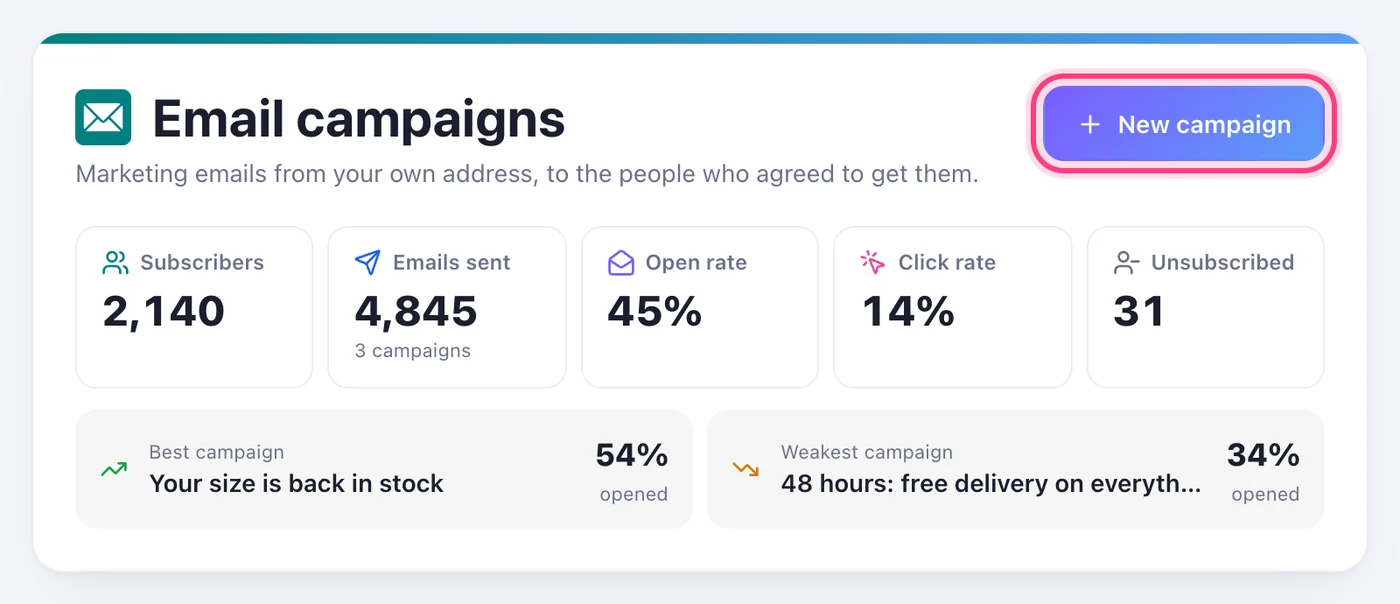
An email that looks like your shop, to the people who asked to hear from you — and a second chance for the ones who didn't open it.
5 stepsEmail campaigns is in the menu on the left, under Sales.
The name is only for you. Choose who it's from and who gets it — everyone subscribed, or one label. Write the subject and the preview text, or let “Write it for me” draft it from one sentence.
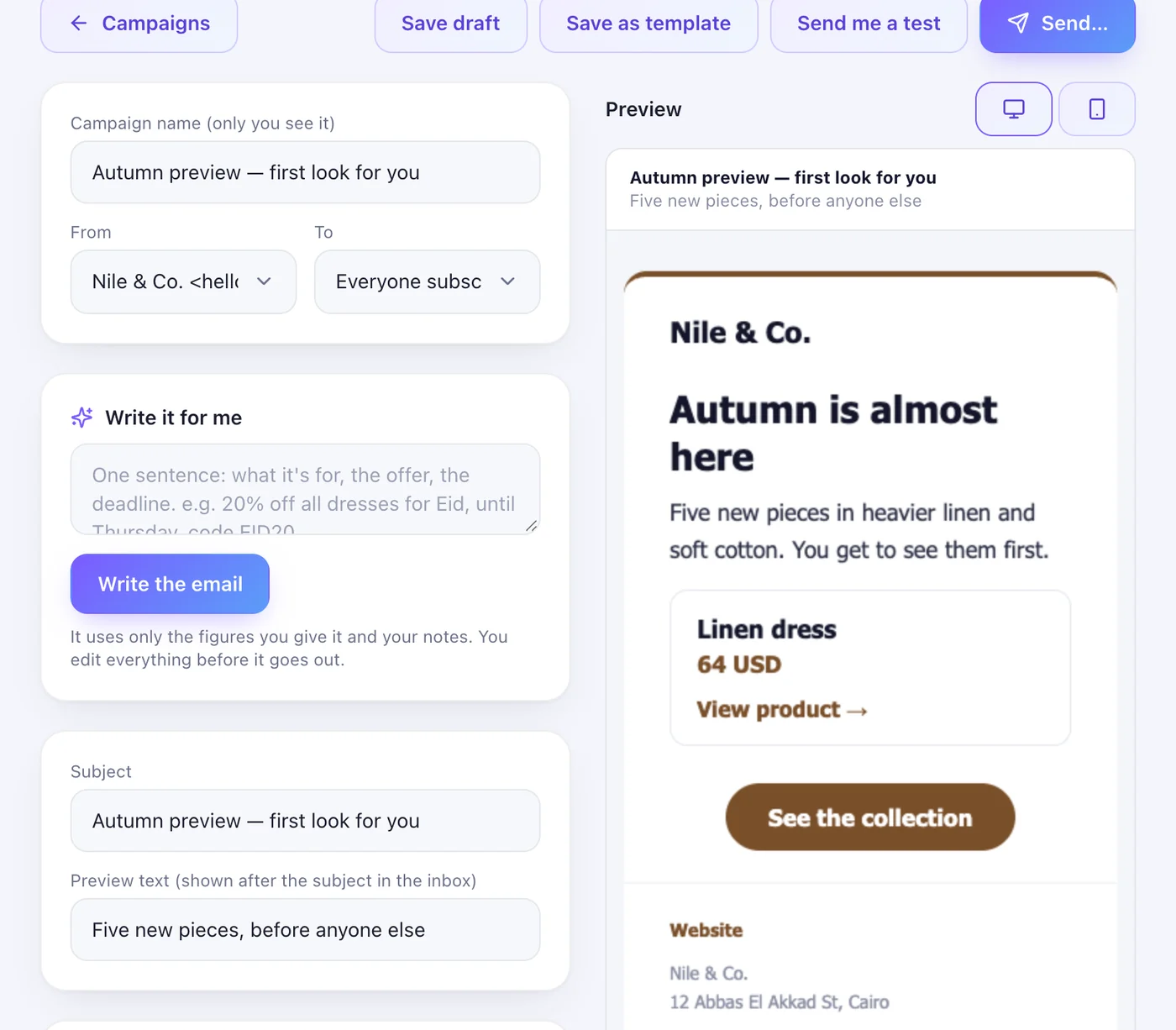
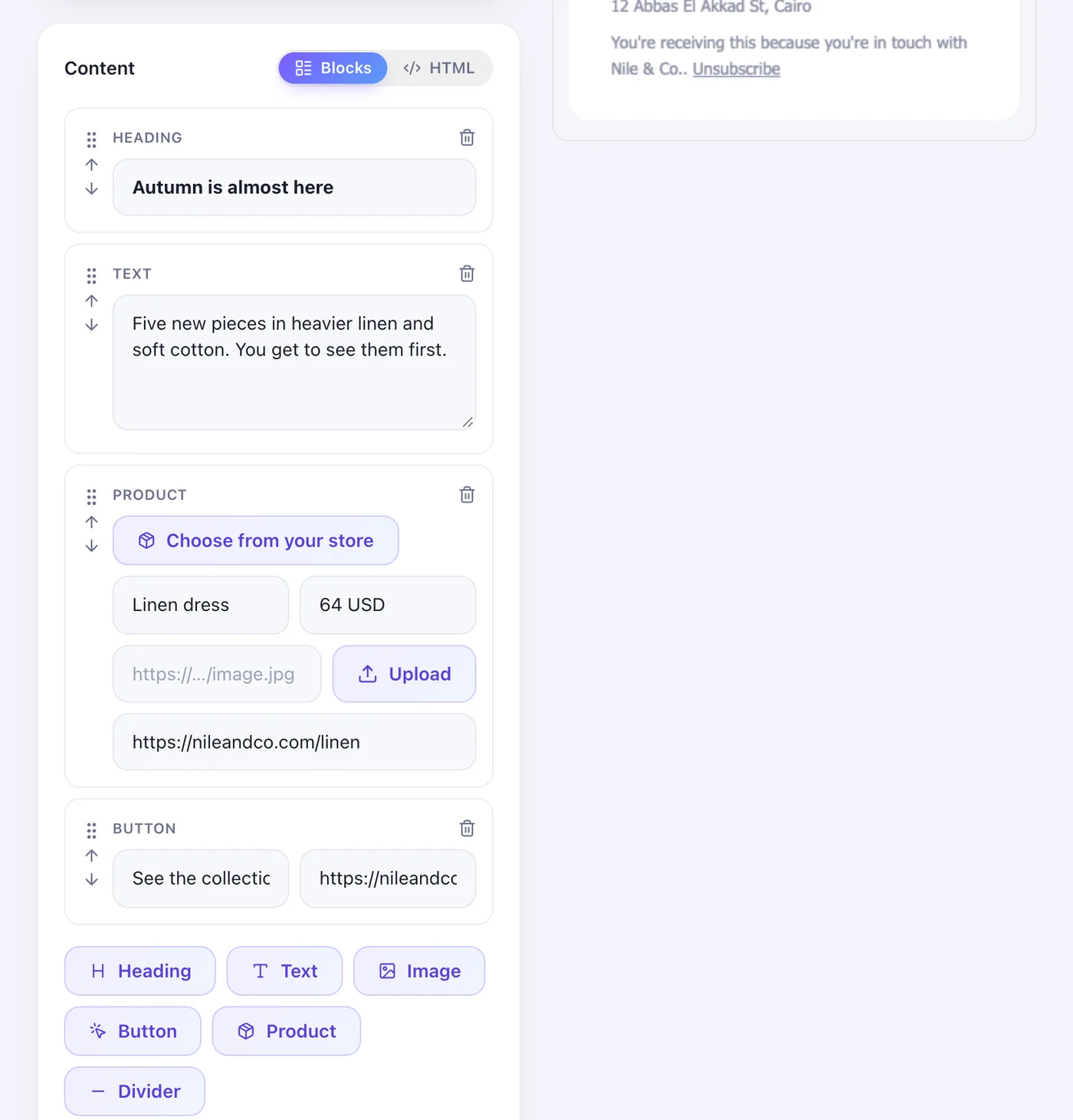
Heading, text, image, button, divider — and “Product”, which pulls a product straight from your store. Or paste your own HTML. The preview shows it on a computer and a phone; “Send me a test” sends it to you first.
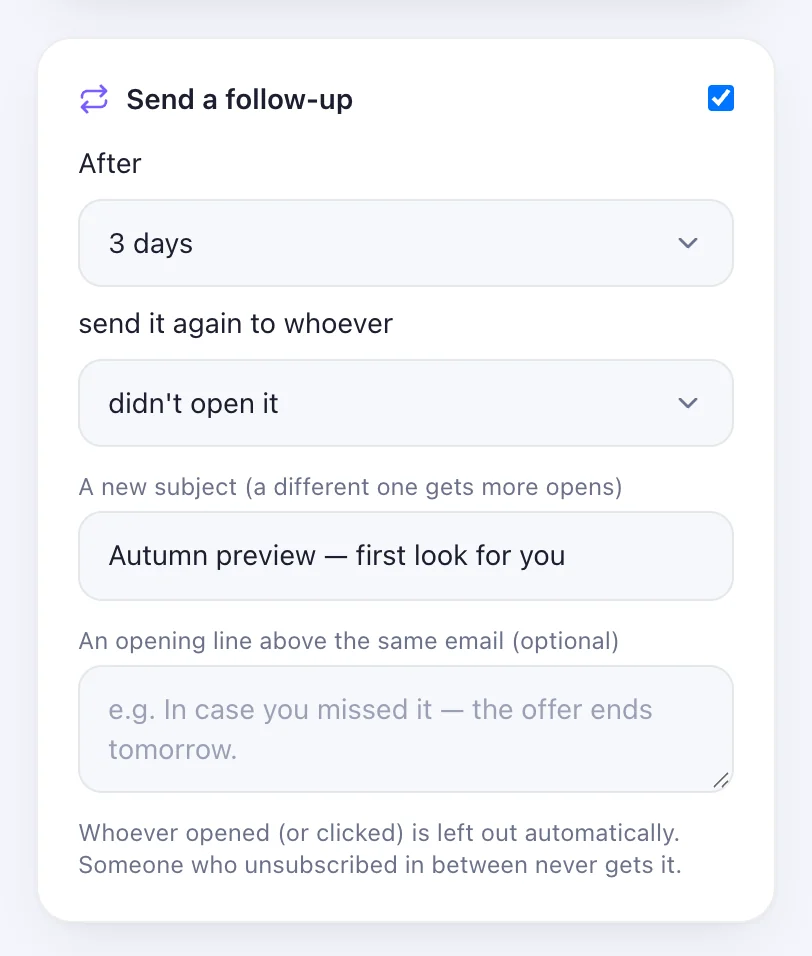
Tick “Send a follow-up”: choose after how many days, and whether it goes to whoever didn't open it or whoever didn't click. A new subject gets more opens.
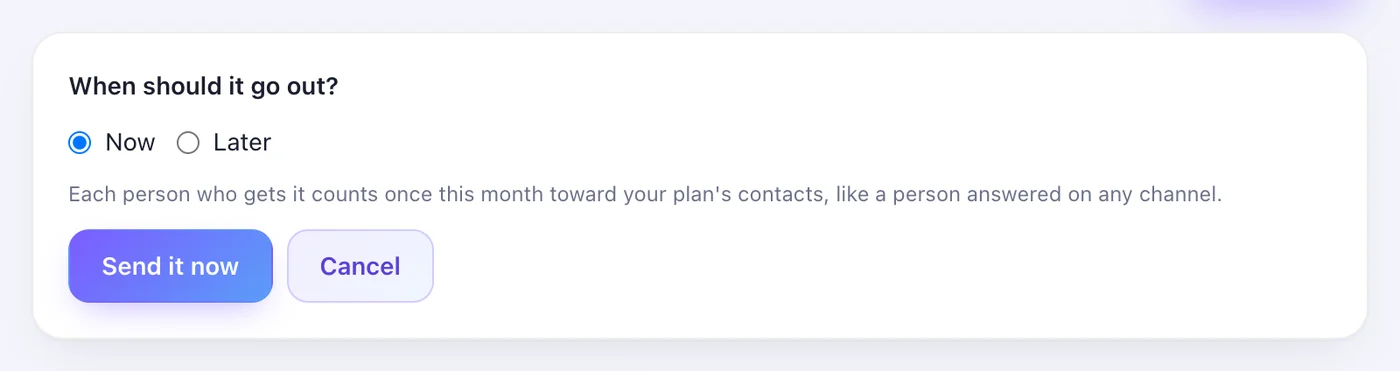
Press “Send…”, then choose Now or Later — up to 29 days ahead — and “Send it now” or “Schedule it”.