1Step 1
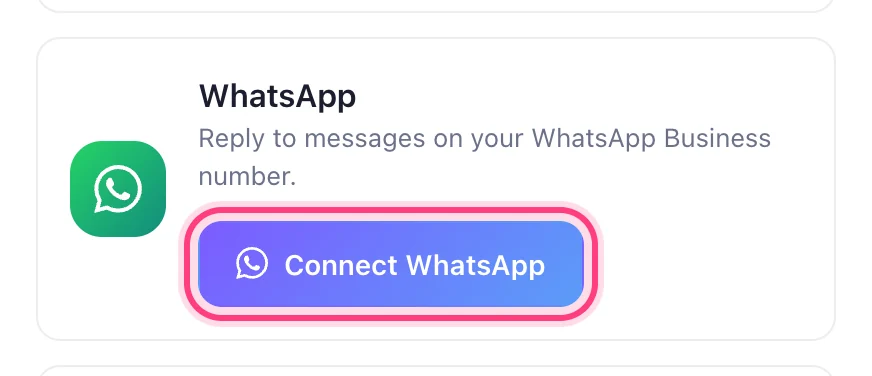
Open Accounts and press “Connect a channel”
Accounts is in the menu on the left; the button is at the top of the page.

Keep the number you have on the WhatsApp Business app, or start with a new one.
5 stepsAccounts is in the menu on the left; the button is at the top of the page.
WhatsApp comes with Pro and above. A Meta window opens — keep this tab open and don't reload it until that window closes.
In Meta's window, sign in with Facebook, then choose your business (or create one) and your WhatsApp Business account.
This step happens on another site, so it looks the way that site looks on the day.
Two ways. Connect the WhatsApp Business app you already use: the number stays on your phone, and what you type there shows in your inbox. Or add a number that isn't on any WhatsApp app: Meta texts it a code to check it's yours.
This step happens on another site, so it looks the way that site looks on the day.
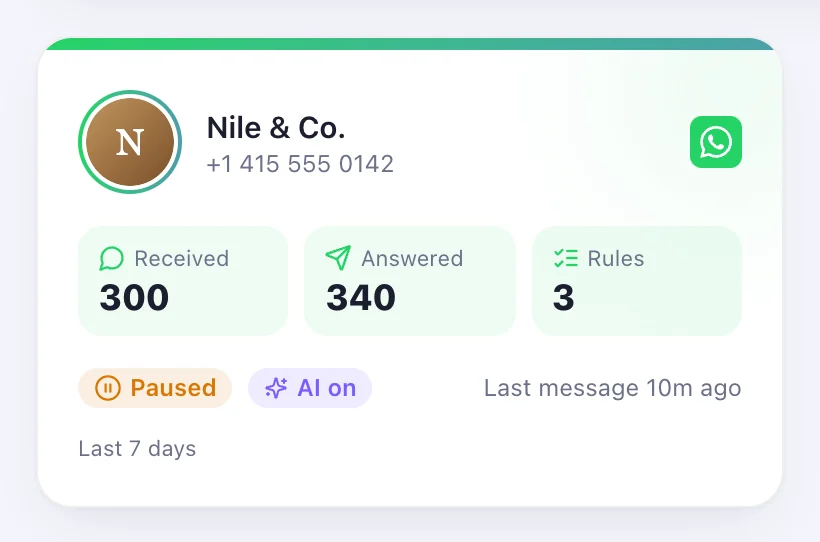
The number appears on your Accounts page. Open it to write the replies it sends.