1Step 1
Open Accounts and press “Connect a channel”
Accounts is in the menu on the left. The button sits at the top of the page.

Your Instagram account answering comments and DMs — about two minutes.
5 stepsAccounts is in the menu on the left. The button sits at the top of the page.
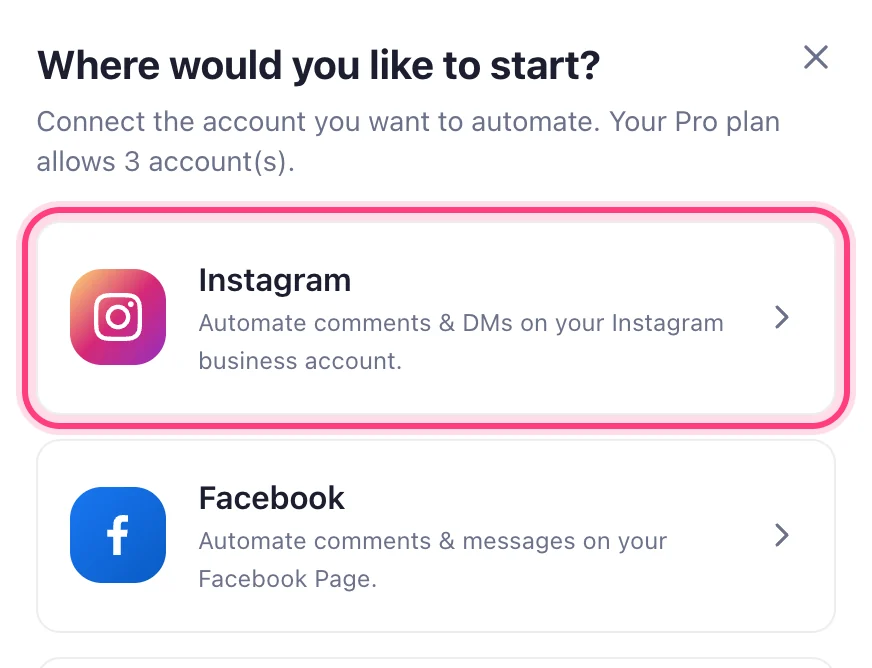
A window opens with every channel. Press Instagram. It has to be a Business or Creator account linked to a Facebook Page you manage — a personal account won't appear.
Facebook asks which Pages and Instagram accounts Speedy Text may use. Tick your Instagram account and the Page it's linked to, and allow what it asks for — without it the replies can't go out. Already connected other Pages? Tick them again too: Facebook keeps only what you tick this time.
This step happens on another site, so it looks the way that site looks on the day.
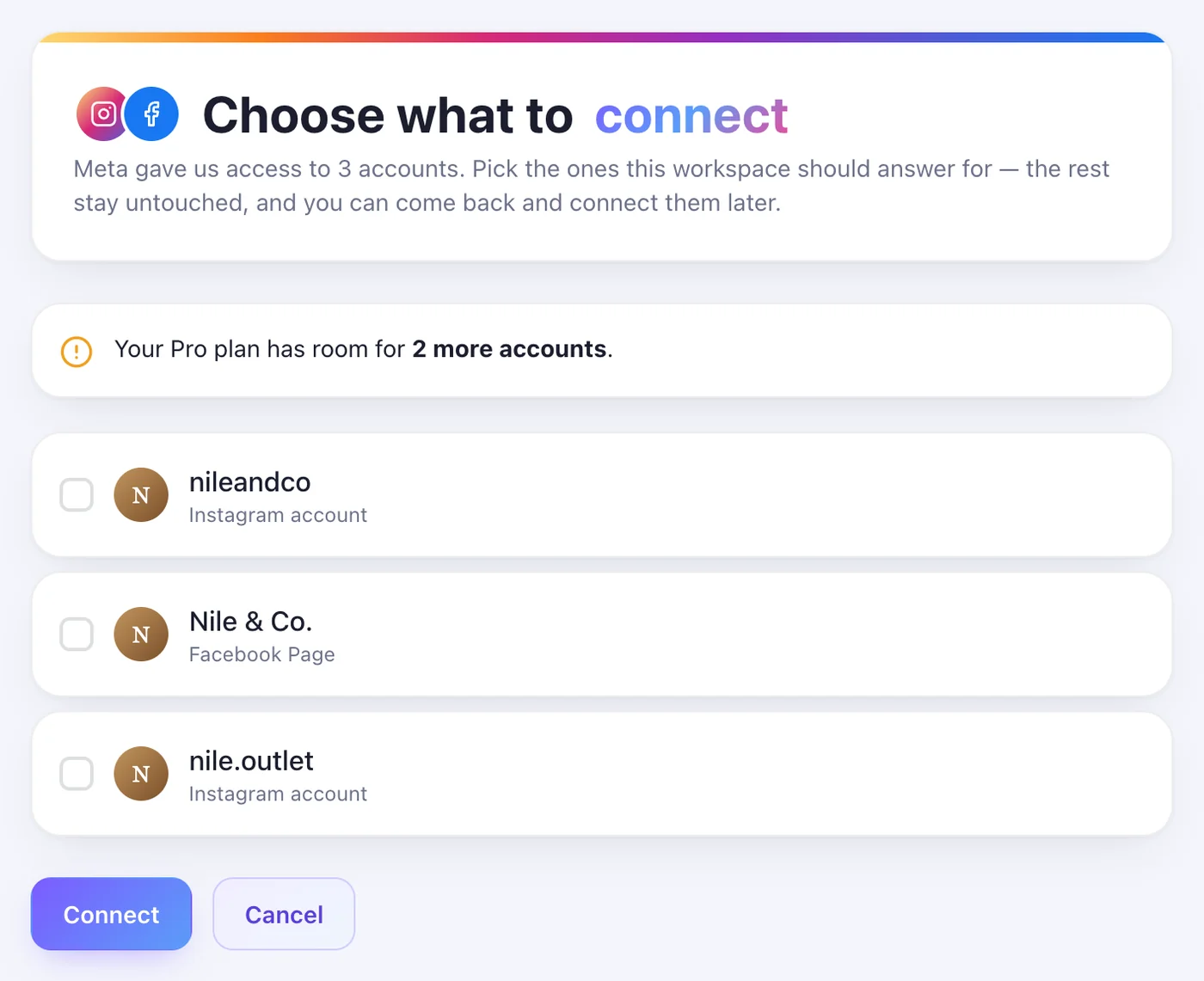
If Facebook handed over more than one account, choose the ones you want and press Connect. Only one? This step is skipped.
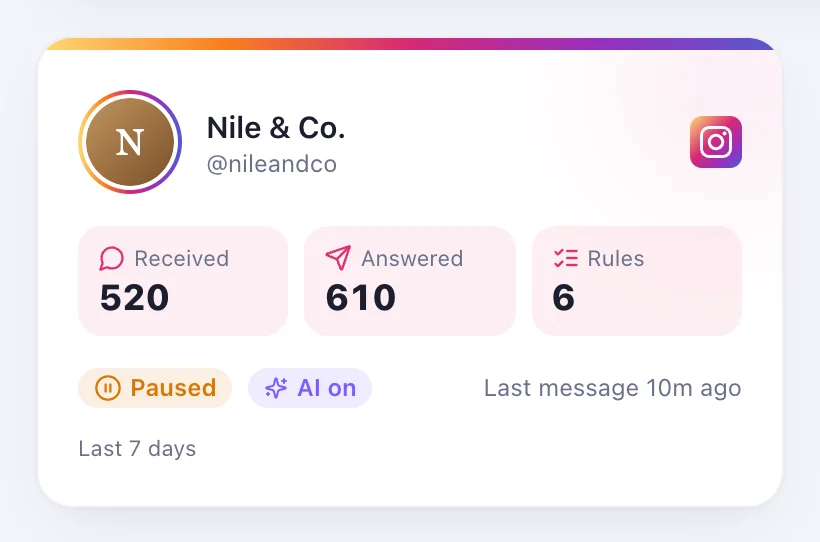
The account is on your Accounts page. Open it to write your first rule.