1Step 1
Open Accounts and press “Connect a channel”
Accounts is in the menu on the left; the button is at the top of the page.


Forward your inbox, and every customer who writes gets an answer in seconds, in the same thread.
5 stepsAccounts is in the menu on the left; the button is at the top of the page.
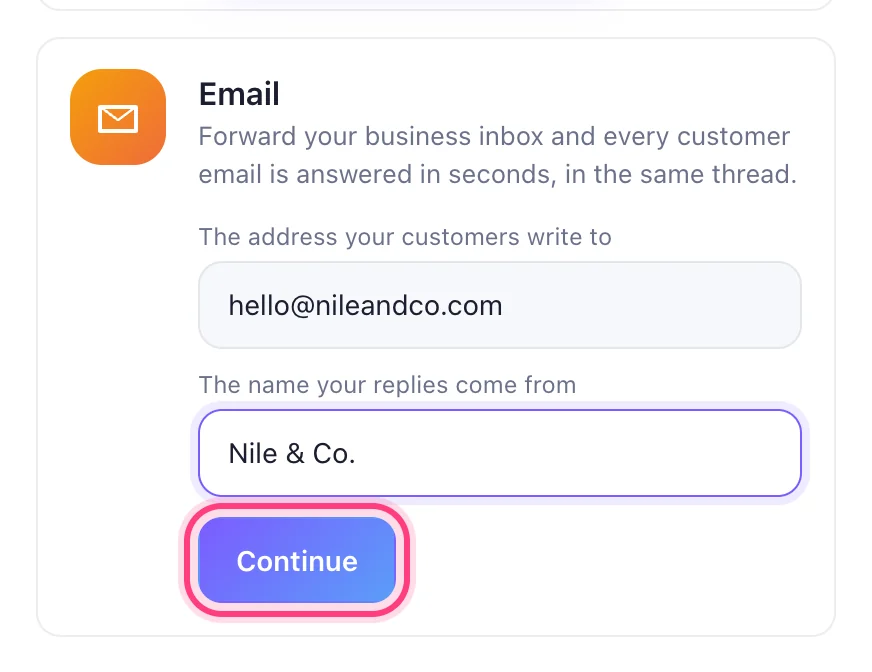
In the Email card press “Connect an inbox”. Write the address your customers write to and the name your replies come from, then press Continue.
You get an address made for you. Press Copy.
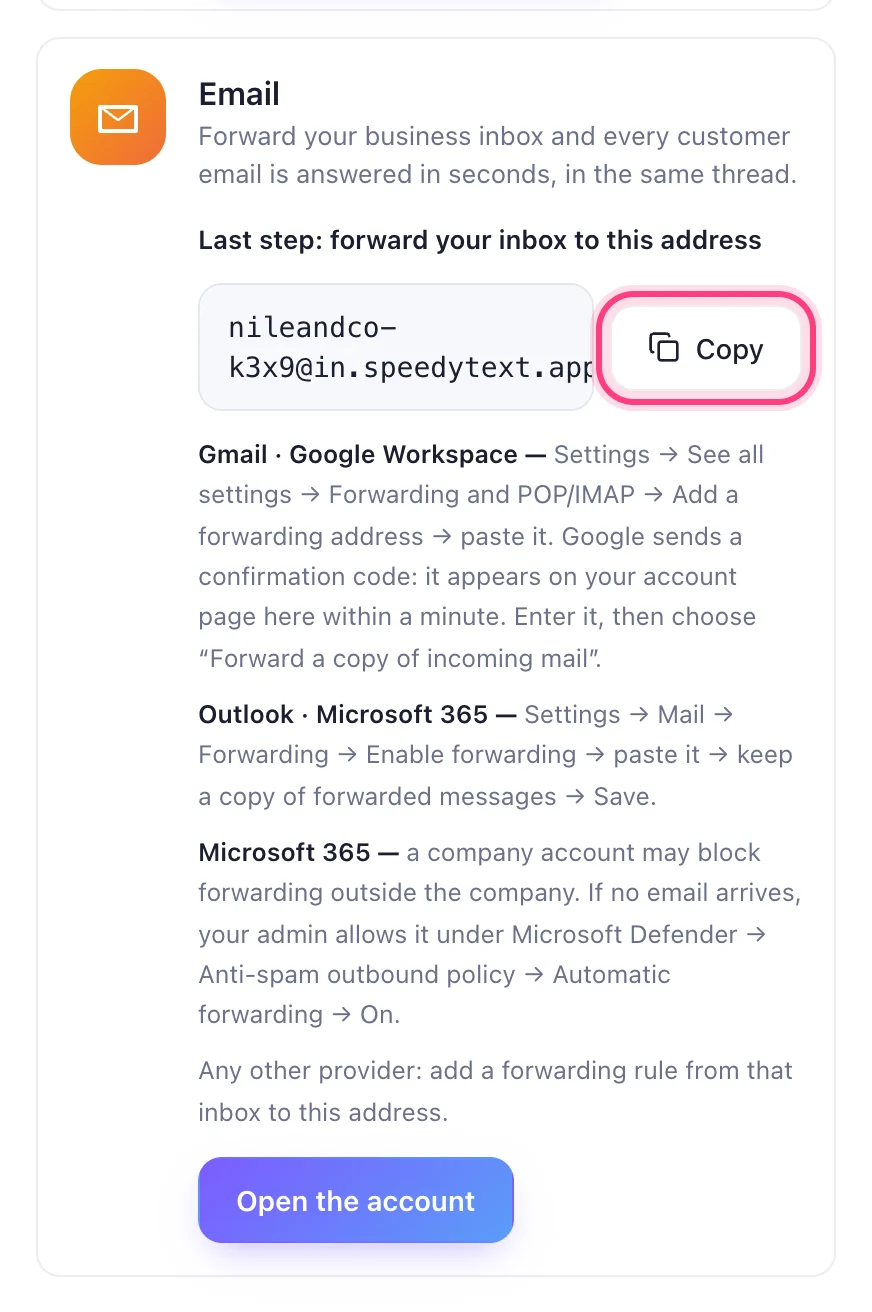
In Gmail: Settings → See all settings → Forwarding and POP/IMAP → Add a forwarding address, and paste it. In Outlook: Settings → Mail → Forwarding → Enable forwarding, paste it and Save.
This step happens on another site, so it looks the way that site looks on the day.
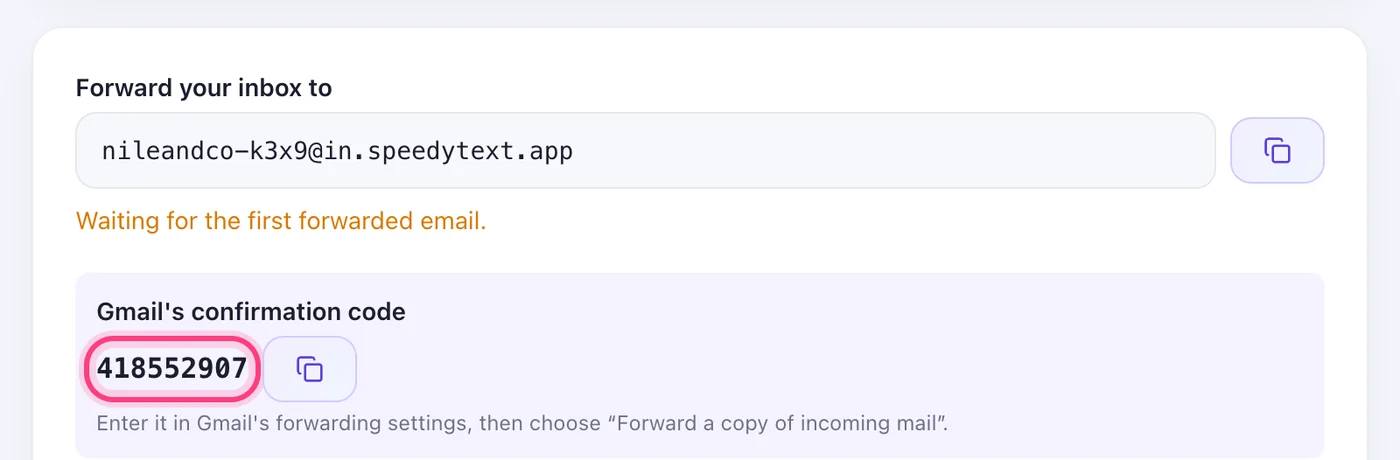
Forward your inbox to itGmail sends a code to check the forwarding — it shows up here, on the account's “Email settings” tab. Type it into Gmail and forwarding is on.