
Bring your tags, fields and contacts across, and rebuild each automation from a ready-made flow — your ManyChat account isn't touched.
Step 1
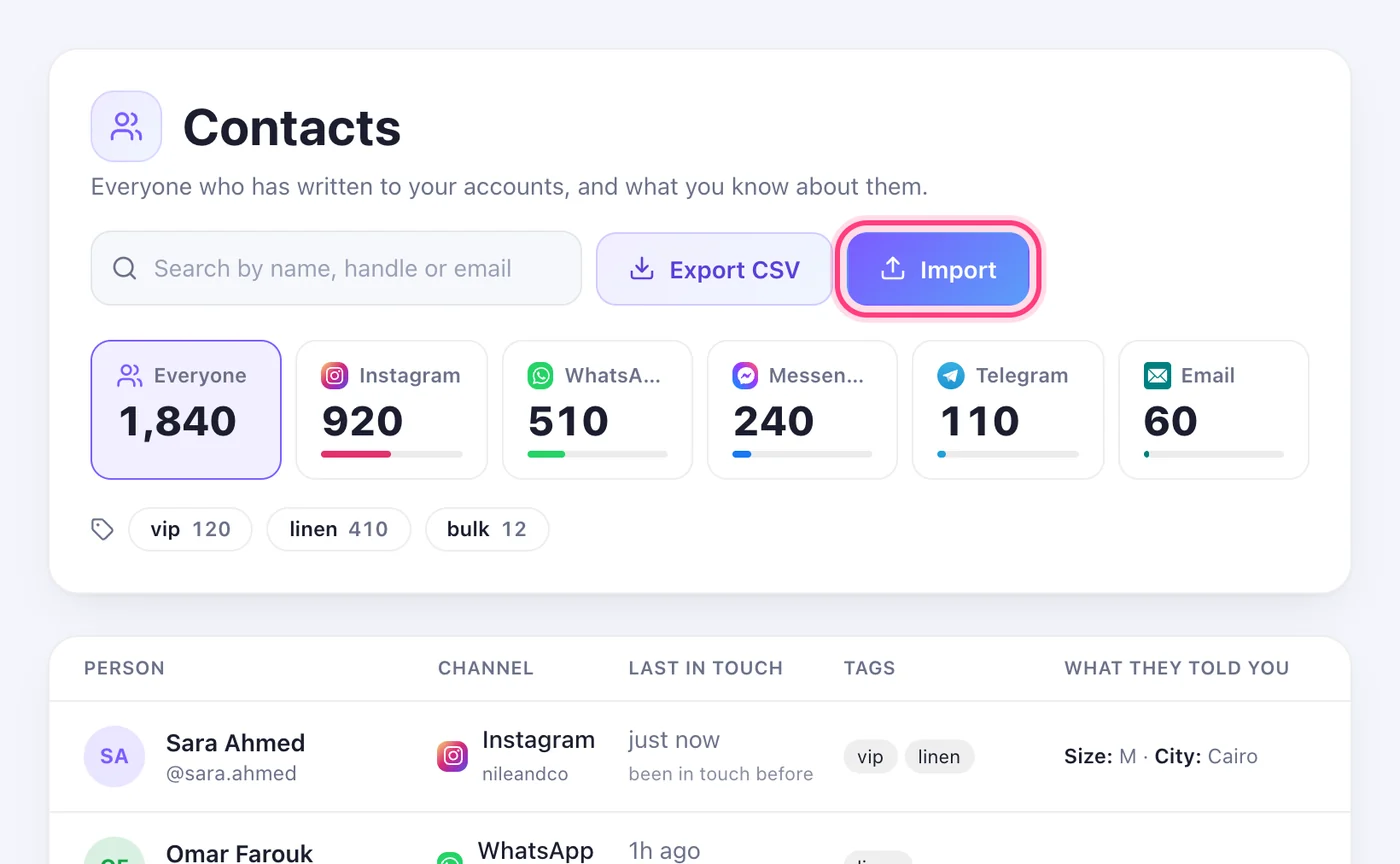
Open Contacts → Import
In Speedy Text, open Contacts and press “Import”. The page has two parts: reading your ManyChat account, and bringing your contacts.
Step 2
Copy your ManyChat API key
In ManyChat, open Settings → API and press “Generate your API key” (it's on ManyChat's paid plans). Copy it.
Step 3
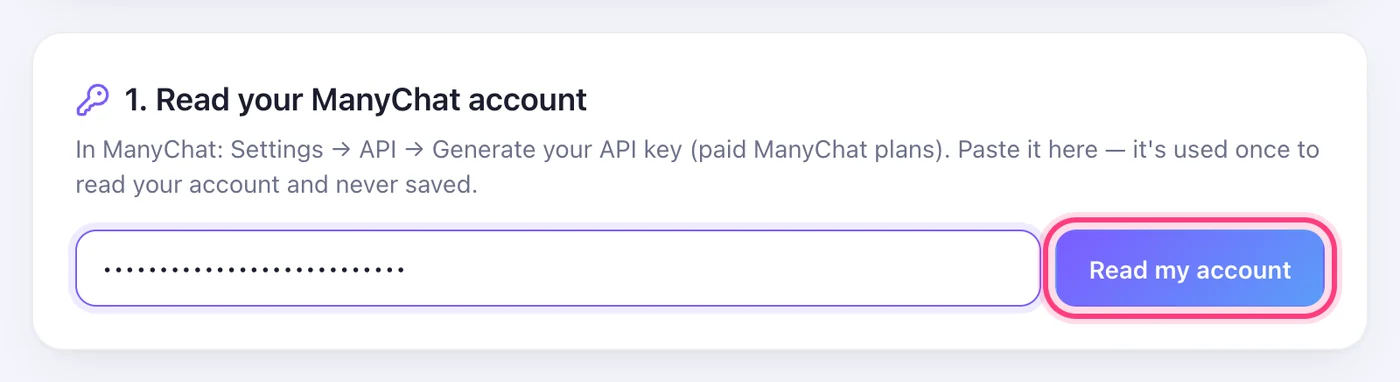
Read your account
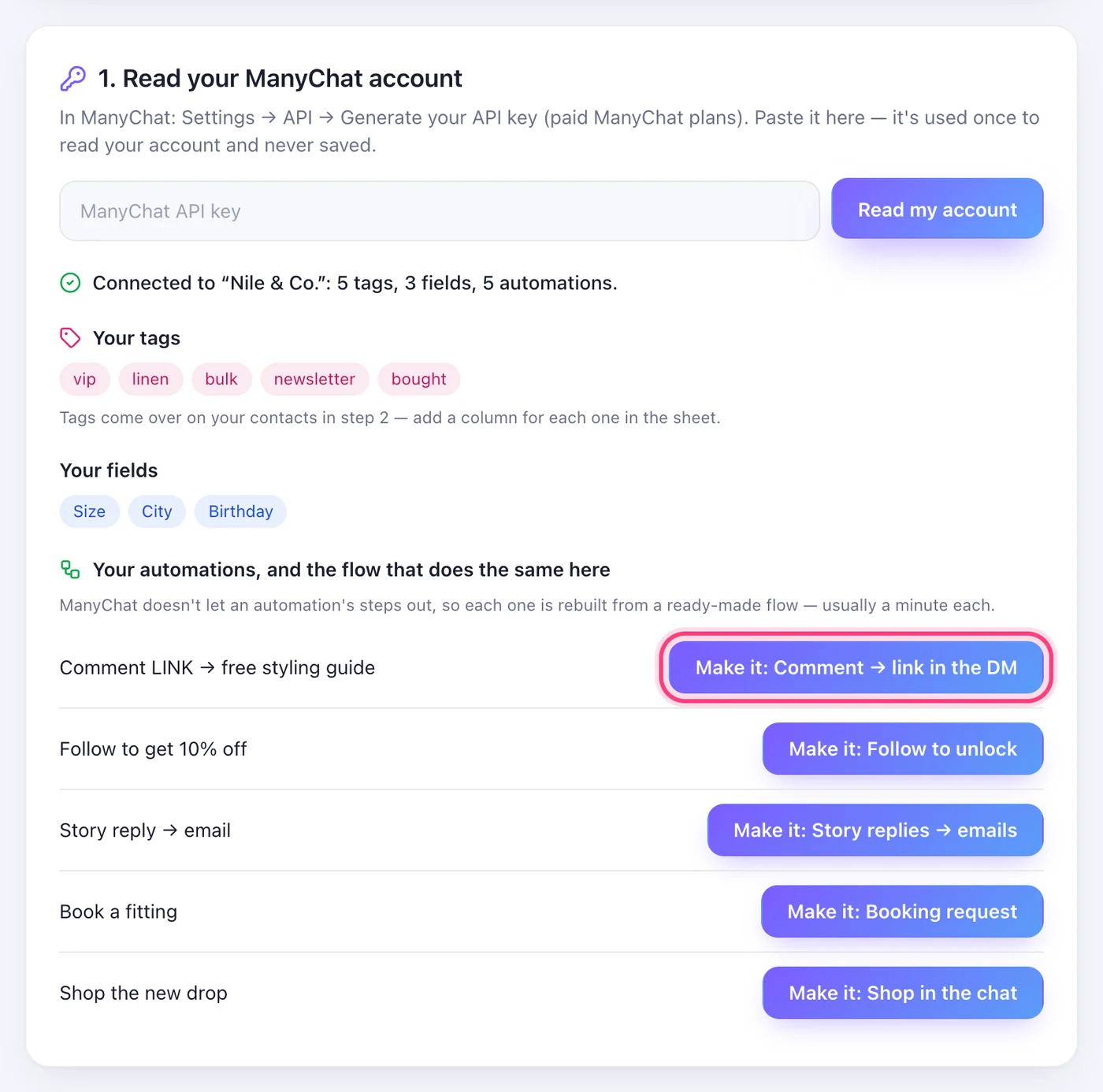
Paste the key in Speedy Text and press “Read my account”. You'll see your tags, your fields and every automation, each with the ready-made flow here that does the same job. The key is used once and never saved.
Step 4
Rebuild each automation
Press “Make it” next to an automation: a new flow opens on the matching template, already named after it. Pick the account, press “Create and open”, change the words to yours and press “Set Live”. ManyChat doesn't let an automation's steps out, so this is the one part done by hand — usually a minute each.
Step 5
Make the contacts sheet in ManyChat
ManyChat sends contacts out through Google Sheets. First connect Google Sheets in ManyChat (Settings → Integrations). Then make a new automation whose first step is an Action → Google Sheets → Insert row, pick a spreadsheet, and add these columns: Name, Instagram username, Email, Phone — then one column per tag (ManyChat writes TRUE or FALSE) and any field you want to keep.
Step 6
Send it to everyone
Set that automation live, then go to Broadcasting → Broadcast from automation, pick it and send it to all contacts. Nobody gets a message — the action only writes each person into the sheet.
Step 7
Download the sheet
In Google Sheets: File → Download → Comma-separated values (.csv).
Step 8
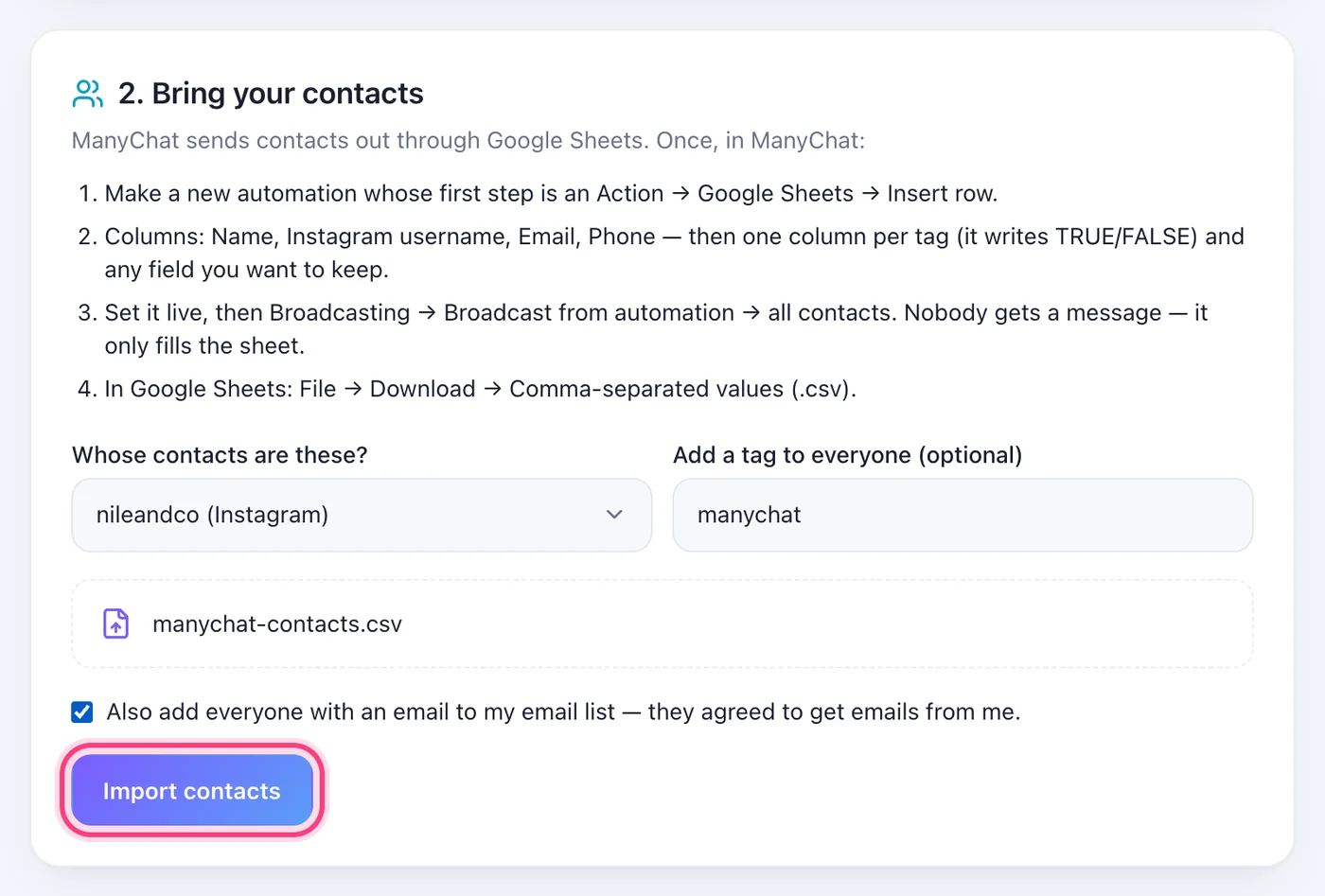
Upload it in Speedy Text
Back on the Import page, choose whose contacts these are (the Instagram account, Page or WhatsApp number), choose the file, add a tag if you like, and press “Import contacts”. Tick the email box only if these people agreed to get emails from you — then everyone with an email also joins your email list.
Worth knowing
- When one of them writes to you, their ManyChat tags and fields join their conversation by themselves (matched by Instagram username). On WhatsApp the phone number is the contact itself.
- Before a flow goes live here, turn the same automation off in ManyChat — two tools answering the same comment send two replies.
- Instagram and Messenger only let a business message someone within 24 hours of their last message, so imported people can't be messaged first; they're ready for when they write.
Was this article helpful?