
Your own ShipBlu account: orders booked in the right package size, cash on delivery, across Egypt.
Step 1
Press “Connect ShipBlu”
It's on the Store page, in its own row. Only the workspace's owner can connect a courier.

Step 2
Copy your API key from ShipBlu
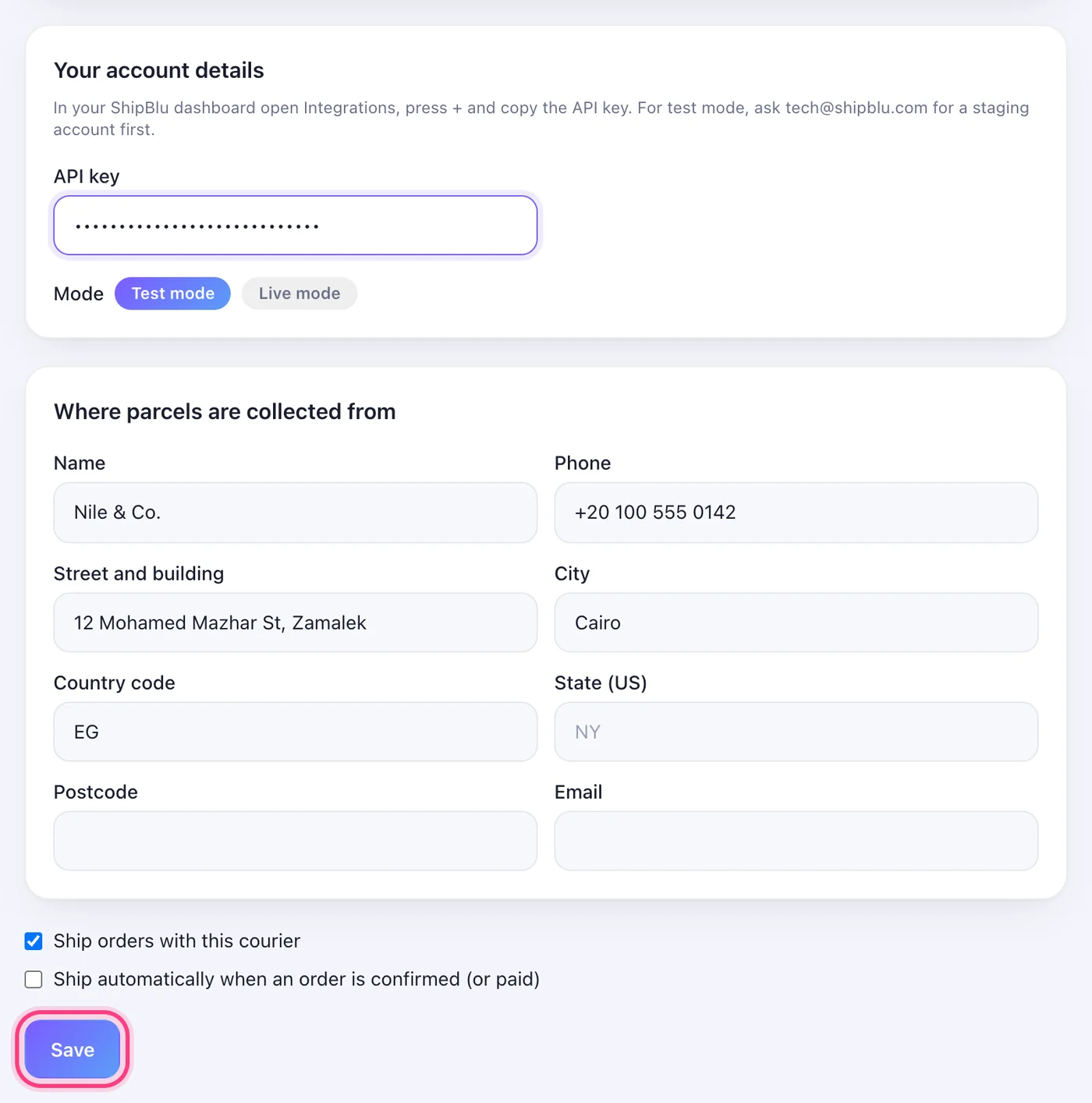
In your ShipBlu dashboard open Integrations, press + and copy the API key. For Test mode, ask tech@shipblu.com for a staging account first — its key is a different one.
Step 3
Fill them in and Save
Paste the API key. Then your pickup address. Start in Test mode, then switch to Live mode when a test parcel looks right. Tick “Ship orders with this courier” so the Ship button uses ShipBlu. The details are checked with ShipBlu before anything is saved.
Step 4
Ship an order
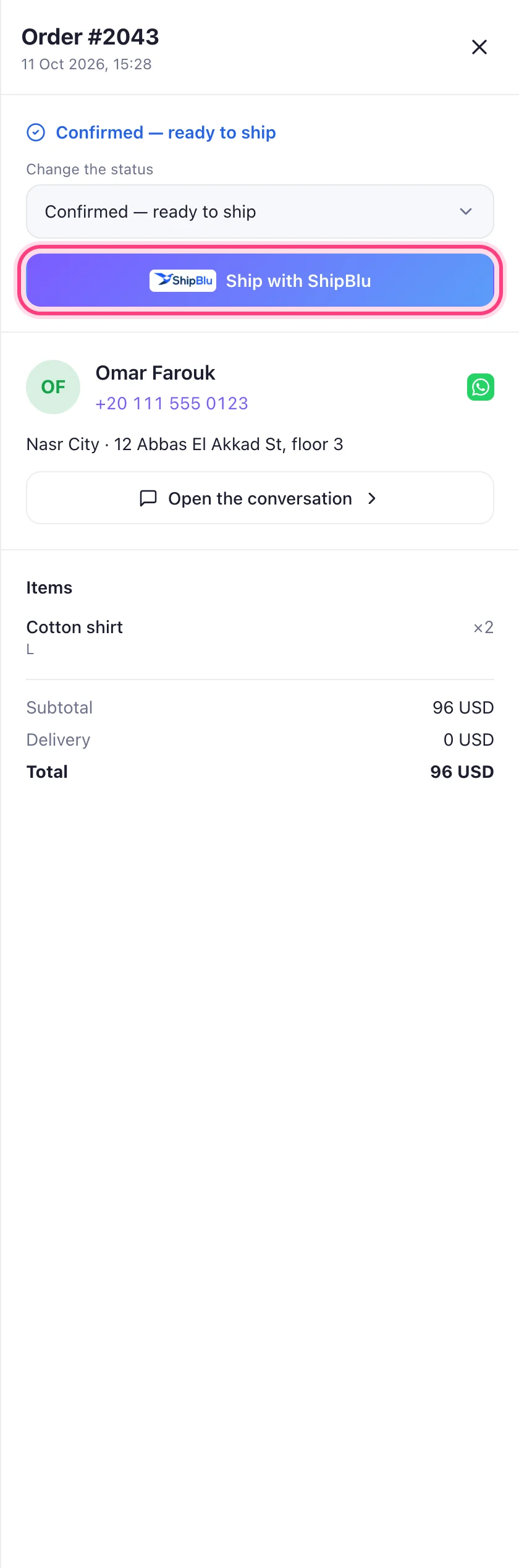
Open the order on your Orders page and press “Ship with ShipBlu”. The tracking number appears on the order, the label is one click away, and the customer is told in the chat.
Worth knowing
- The package size is worked out from the order's products — set your products' sizes under Parcel sizes for the best match.
- Where the parcel is gets checked once a day and shown on the order. The customer's shipped message never names the courier.
Was this article helpful?