
Invite someone, choose what they can do, and switch between the teams you belong to.
Step 1
Invite someone
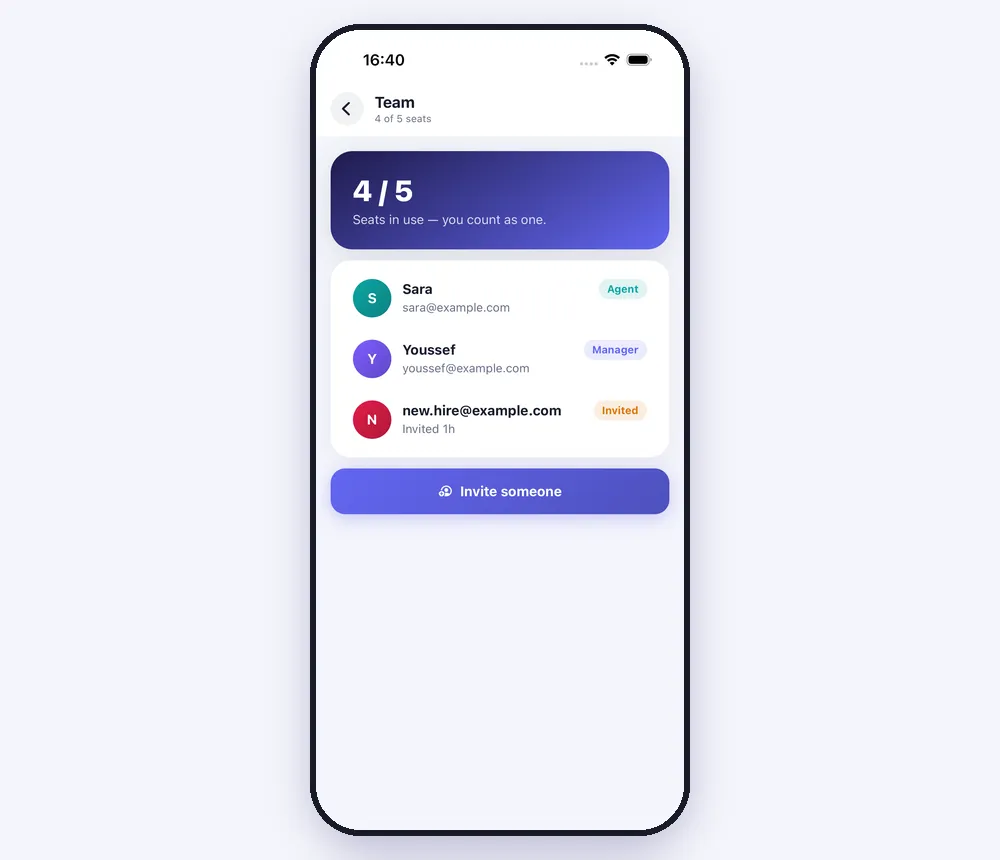
“More” → “Team” shows the seats in use and everyone in your team. Press “Invite someone”, type their email, choose “Agent” (answers the inbox) or “Manager” (everything except money, the team and connecting channels), and press “Send the invitation”.
Step 2
They accept
They get an email and accept it signed in with that same address. From then on they sign in to the app with their own account and land in your workspace, with their own notifications in their own language.
Step 3
Switch between workspaces
Someone who belongs to more than one team sees “Workspace” at the top of “More”. Tap it and choose whose workspace to work in; every screen reloads for it.
Worth knowing
- Tap a member to change their role, remove them, or cancel an invitation that hasn't been accepted.
- Extra seats are added on speedytext.app.
Was this article helpful?