
Sign in, see your day on one screen, and choose what your phone tells you about.
Step 1
Get the app and sign in
The app is coming to the App Store and Google Play. Sign in with the same email or Google account you use on the website — everything you set up there is already in the app.
Step 2
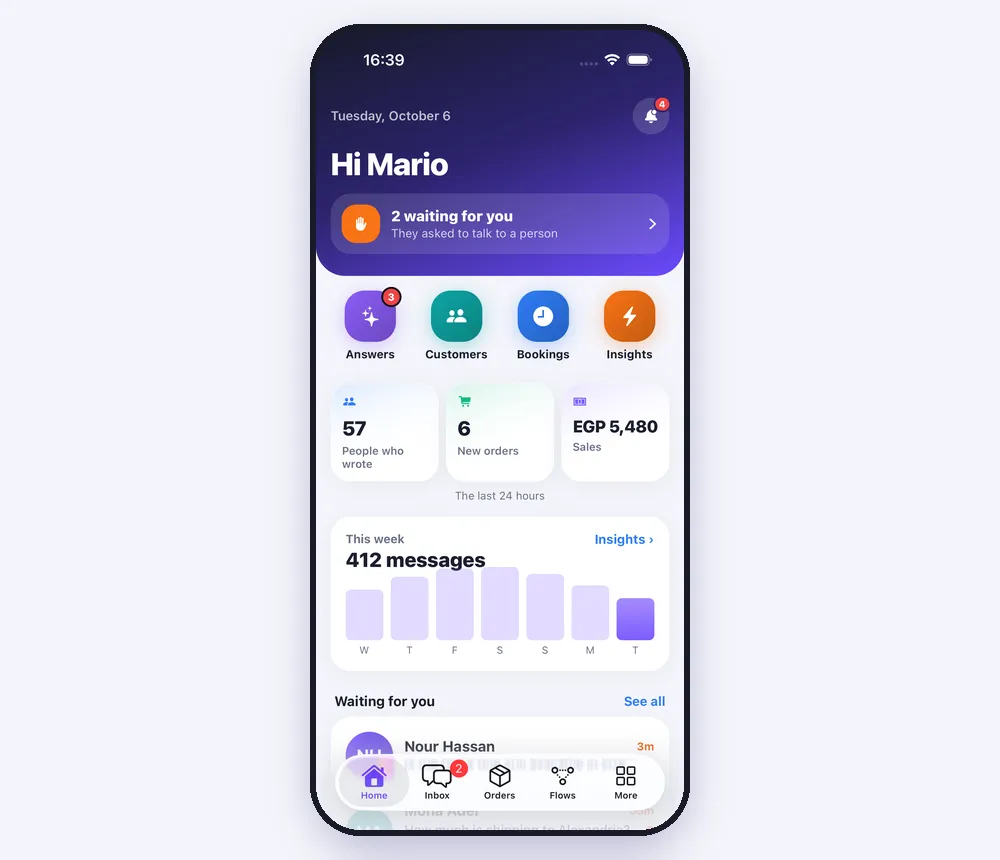
Your day on the home screen
“Home” shows who is waiting for you, new orders, people who wrote in the last 24 hours and today's sales, with the week's messages under them. Tap any of them to open the list behind it.
Step 3
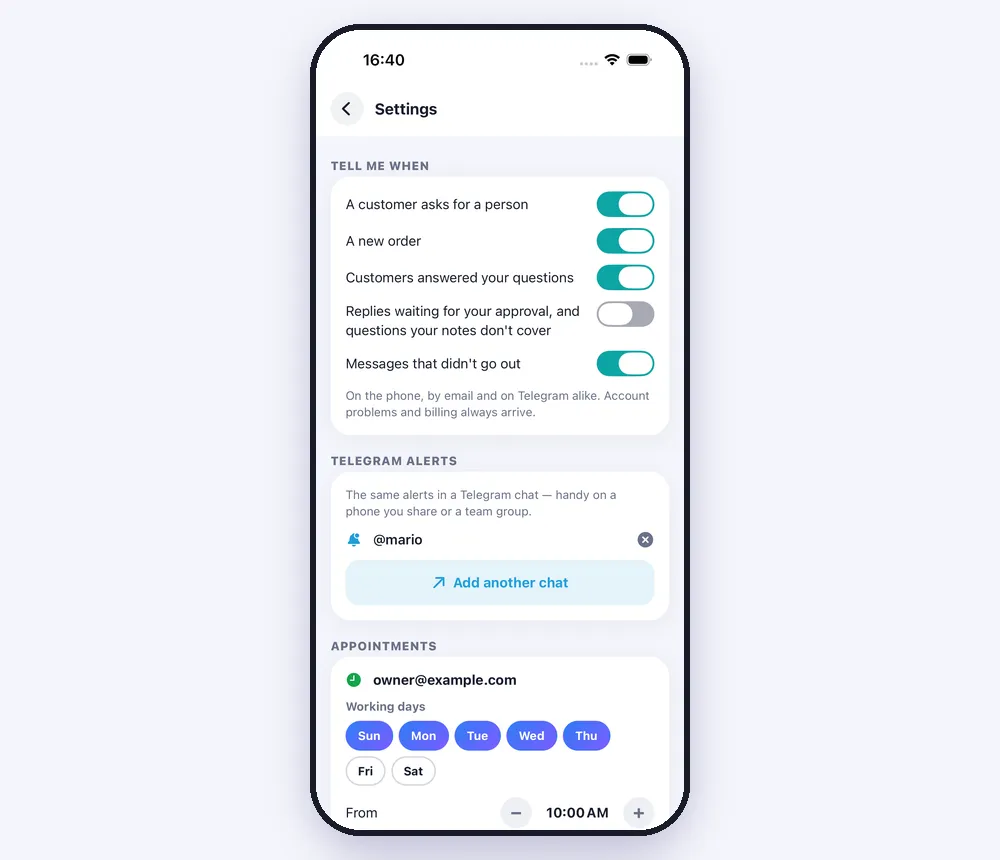
Choose what you're told about
Open “More” → “Settings”. Under “Tell me when”, switch on the moments you want a notification for: a customer asks for a person, a new order, customers answered your questions, replies waiting for your approval, messages that didn't go out. The same choices apply to email and Telegram.
Step 4
Language and appearance
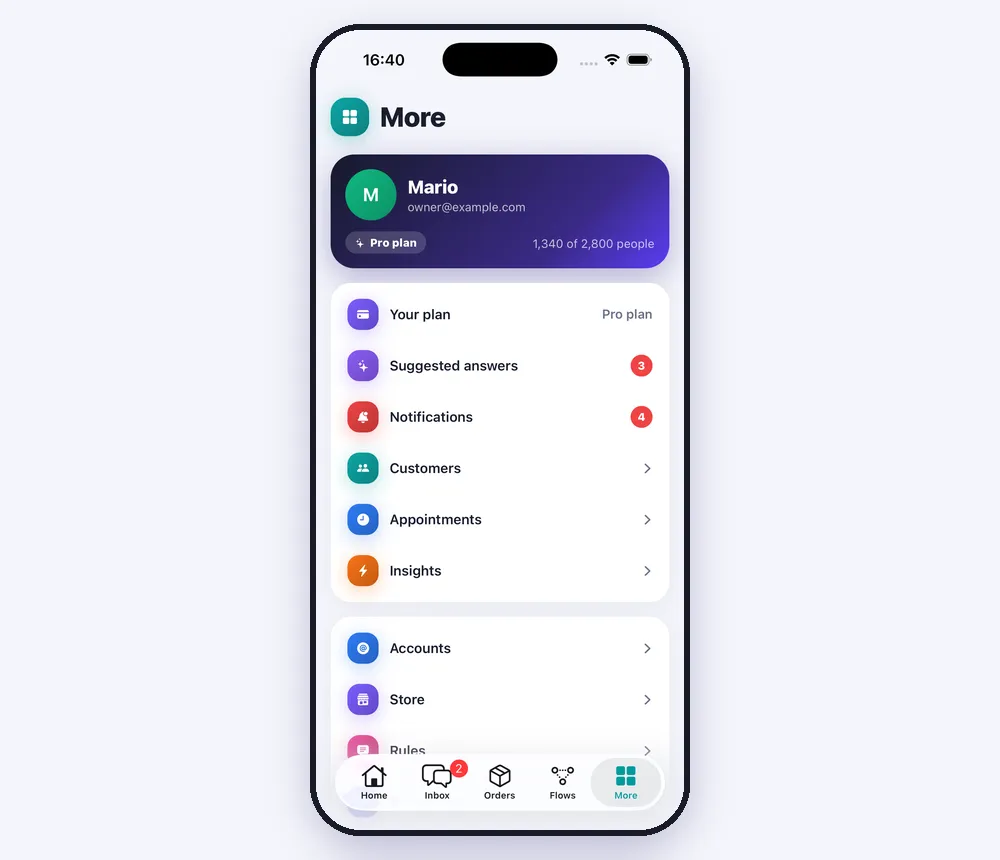
Under “More” you also choose the app's “Language” (it opens in the one you chose on the website) and its “Appearance”: light, dark or the same as the phone.
Worth knowing
- Allow notifications when the app asks — without that permission your phone stays silent whatever you choose in Settings.
- Paying and changing your plan happen on speedytext.app; the app shows your plan and what's used this month.
Was this article helpful?